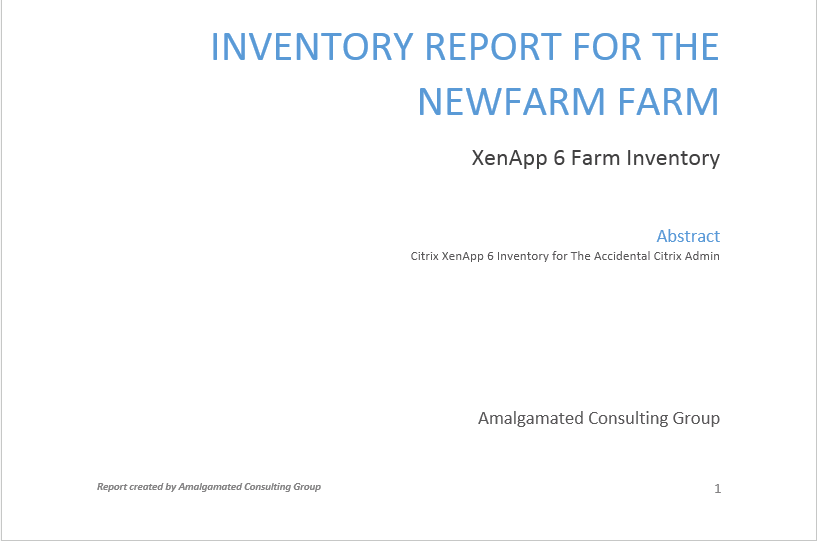
The script to document a Citrix XenApp 6 farm has proven to be very popular. I had not always wanted to take the time to create a version of the script that would output to a Microsoft Word document because this script had not been downloaded very much. But in the last few months, the script has been downloaded several thousands of times. So I finally decided it was time to create a version of this script that creates a Word document. Ryan Revord had taken the XenApp 6.0 version of the script and changed it to create a basic Microsoft Word document. Ryan saved me a lot of work but I wanted improve on the document created by adding a cover page, Table of Contents and footer. This article will explain the changes to the script to create a Word document.
NOTE: This script is continually updated. You can always find the most current version by going to https://www.carlwebster.com/where-to-get-copies-of-the-documentation-scripts/
As much as Microsoft pushes PowerShell for their products and on their users, I find it surprising there is no native PowerShell support for any of the Office products. For example there is no New_WordDocument, Get-WordDocument or Save-WordDocument. In order to use Word with PowerShell you must use the Word COM Object model. Finding detailed information on that subject was not easy. Fortunately for me, Jeff Hicks had blogged about a presentation he did in 2012 where he linked to some sample PowerShell script files. One of his sample files gave me the start I needed.
The prerequisites to follow along with this article are:
- A server, physical or virtual, running Microsoft Windows Server 2008 R2 with or without SP1
- Citrix XenApp 6 installed with or without HRP01 or HRP02
- Word 2007, 2010 or 2013 installed on the computer running the script
I tested the script with Hotfix Rollup Pack 02.
Note: The parts of this script that deal with creating the Word document are derived 100% from the XenApp 6.5 script. To read the details of the changes to the script that deal with Microsoft Word, please read Documenting a Citrix XenApp 6.5 Farm with Microsoft PowerShell and Word – Version 3. Several of the bug fixes and issues resolved for Version 3.1 of the XenApp 6.5 script are included in this script. These include:
- Several typos were fixed to get rid of my southern drawl. No more “gettin”, “settin” or “runnin”.
- More Write-Verbose statements were added.
- Fixed all the issues reported by running the script with Set-StrictMode –Version 2.0 set.
- For some users, when Microsoft Word is installed, the HKCU:\Software\Microsoft\Office\Common\UserInfo\CompanyName registry key is set and for some, it is not set. For those users, the HKCU:\Software\Microsoft\Office\Common\UserInfo\Company registry key is set. The script will now check both locations.
- Some companies do not install the Microsoft Word Templates. This cause the Cover Page and Table of Contents sections of the script to generate numerous errors. The script now checks to see if the appropriate Word Template file is loaded successfully. If not, then the Cover Page and Table of Contents are skipped. The rest of the report is generated.
- Pat Coughlin showed me how to disable Spell Check and Grammar Check while the document is created. For large XenApp 6 Farms, this can substantially speed up the document creation. For those large farms that can generate 1000+ page documents, Word would crash trying to keep track of all the spelling and grammar errors.
- In the Load Evaluator section, the Load Throttling and Server User load settings were added.
- A user on StackOverflow.com showed me how to indent the Table used for the Citrix Services.
- Now that I know how to indent the Word Tables, I added Tables for the Citrix Installed Hotfixes and the Microsoft Hotfixes.
- The Table for the Microsoft Hotfixes now lists all the Citrix recommended Microsoft hotfixes and whether the hotfix is Installed or Not Installed.
- Before getting information on the Citrix Services and hotfixes, the server is tested to make sure it is reachable.
- I received a question as to whether Microsoft Word needed to be installed to create the Word document. The script now verifies that Word is installed. If not, a warning is given and the script exits.
- I received reports of the script “crashing” if Word was running before the script was run. The script will now check to see if Word is running and if it is, the script will exit. If the script is run from a XenApp server, the script gets the Session ID of the user running the script. Then the script checks if the WinWord process is running in that session. If it is, a warning is given and the script exits.
- Session printers with modified settings are now fully detailed
In trying to find resources to figure out how to use PowerShell to create a complex Word document, I found Jeff Hick’s blog post and sample scripts.
http://jdhitsolutions.com/blog/2012/05/san-diego-2012-powershell-deep-dive-slides-and-demos/
Jeff had a ZIP file with several sample PowerShell scripts. One of them, Demo-WordReport.ps1, was extremely helpful.
There are three pieces of information the script needs for the Cover Page and Footer:
- Company Name
- Cover Page
- User Name
Since a digitally signed version of the script is provided, these three pieces of information need to be passed to the script as parameters. A signed PowerShell script cannot be modified or the script is rendered useless.
These parameters give us $CompanyName, $CoverPage and $UserName. Each has an alias: CN for CompanyName, CP for CoverPage and UN for UserName.
The default for $CompanyName is read from the registry key where Microsoft Office stores user information. For some users, when Microsoft Word is installed, the HKCU:\Software\Microsoft\Office\Common\UserInfo\CompanyName registry key is set and for some, it is not set. For those users, the HKCU:\Software\Microsoft\Office\Common\UserInfo\Company registry key is set. The script checks both locations.
The default for $CoverPage is Motion. Motion is a Word Cover Page that comes with both versions of Word, looks good but will require a minor tweak of changing the font used by the date field to a smaller font size. Some companies do not install the Microsoft Word Templates. The script checks to see if the appropriate Word Template file is loaded successfully. If not, then the Cover Page and Table of Contents are skipped. The rest of the report is generated.
The default for $UserName is taken from the USERNAME environment variable.
The parameter names can be spelled out or the aliases can be used or any combination. All three of these examples are valid:
-CompanyName “XYC, Inc.” –CoverPage “Grid” –UserName “Joe User”
-CN “XYC, Inc.” –CP “Grid” –UN “Joe User”
-CoverPage “Grid” –UN “Joe User”
For the third example, the default Company Name will be used.
For the Word document to be saved a file name is needed and for the Cover Page, a title is needed.
The filename for the document is the XenApp farm name with the extension DOCX. The document is stored in the folder where the script is run.
Each version of Word comes with Cover Pages and only two are shared across both versions. The version of Word installed on the computer running the script needs to be determined. If a wrong cover page is passed as $CoverPage and that Cover Page is not in the installed version of Word, the script will run but a lot of errors will be returned. The script validates the $CoverPage against the valid Cover Pages specific to each version of Word.
If an invalid Cover Page is used, the script gives an error, closes Word and exits.
In Version 1 of this script, in order to write out a line of output, my friend Michael B. Smith wrote a Line function. That function is no longer needed. Ryan took Michael’s function and modified it to write a line to Word.
The next changes in Version 3 come in the Servers section. I added Word Tables to hold information on the Citrix services and installed Citrix hotfixes. I know I can get more data on the services by using WMI Queries but in a large farm with XenApp servers spread geographically; those queries can cause excessive network traffic. I am using the Get-Service cmdlet because it is native.
Since this script has parameters, I created help text for the script. Running the following command from the PowerShell prompt will display the full help text.
Get-Help .\XA6_Inventory_v3.ps1 -full
You can also use –online to get taken to this article.
Get-Help .\XA6_Inventory_V3.ps1 -online
Running the script with –verbose, gives information of the script’s running.
.\xa6_inventory_v3.ps1 -CompanyName "The Accidental Citrix Admin" -CoverPage "Facet" -UserName "Amalgamated Consulting Group" -verbose
Sample output.
PS C:\webster> .\xa6_inventory_v3.ps1 -CompanyName "The Accidental Citrix Admin" -CoverPage "Facet" -UserName "Amalgamated Consulting Group" -verbose
VERBOSE: Getting Farm data
VERBOSE: Setting up Word
VERBOSE: Create Word comObject.  If you are not running Word 2007, ignore the next message.
VERBOSE: The object written to the pipeline is an instance of the type "Microsoft.Office.Interop.Word.ApplicationClass"
 from the component's primary interop assembly. If this type exposes different members than the IDispatch members,
scripts written to work with this object might not work if the primary interop assembly is not installed.
VERBOSE: Running Microsoft Word 2013
VERBOSE: Validate company name
VERBOSE: Validate cover page
VERBOSE: Company Name: The Accidental Citrix Admin
VERBOSE: Cover Page  : Facet
VERBOSE: User Name   : Amalgamated Consulting Group
VERBOSE: Farm Name   : NewFarm
VERBOSE: Title       : Inventory Report for the NewFarm Farm
VERBOSE: Filename    : C:\webster\NewFarm.docx
VERBOSE: Load Word Templates
VERBOSE: Create empty word doc
VERBOSE: disable spell checking
VERBOSE: insert new page, getting ready for table of contents
VERBOSE: table of contents
VERBOSE: set the footer
VERBOSE: get the footer and format font
VERBOSE: Footer text
VERBOSE: add page numbering
VERBOSE: return focus to main document
VERBOSE: move to the end of the current document
VERBOSE: Processing Administrators
VERBOSE: Processing Applications
WARNING: Application information could not be retrieved
VERBOSE: Processing Configuration Logging/History Report
VERBOSE: Processing Load Balancing Policies
WARNING: Load balancing policy information could not be retrieved
VERBOSE: Processing Load Evaluators
VERBOSE: Processing Servers
VERBOSE: Testing to see if XA60 is online and reachable
VERBOSE: XA60 is online.  Citrix Services and Hotfix areas processed.
VERBOSE: Processing Citrix services for server XA60
VERBOSE: Create Word Table for Citrix services
VERBOSE: add Citrix services table to doc
VERBOSE: format first row with column headings
VERBOSE: Move table of Citrix services to the right
VERBOSE: return focus back to document
VERBOSE: move to the end of the current document
VERBOSE: Get list of Citrix hotfixes installed
VERBOSE: Processing server XA60
VERBOSE: number of hotfixes is 1
VERBOSE: Create Word Table for Citrix Hotfixes
VERBOSE: add Citrix installed hotfix table to doc
VERBOSE: format first row with column headings
VERBOSE: Move table of Citrix installed hotfixes to the right
VERBOSE: return focus back to document
VERBOSE: move to the end of the current document
VERBOSE: compare Citrix hotfixes to recommended Citrix hotfixes from CTX129229
VERBOSE: Processing Microsoft hotfixes for server XA60
VERBOSE: Create Word Table for Microsoft Hotfixes
VERBOSE: add Microsoft hotfix table to doc
VERBOSE: format first row with column headings
VERBOSE: Move table of Microsoft hotfixes to the right
VERBOSE: return focus back to document
VERBOSE: move to the end of the current document
VERBOSE: Processing Worker Groups
VERBOSE: Processing Zones
VERBOSE: Processing Citrix IMA Policies
VERBOSE: Finishing up Word document
VERBOSE: Set Cover Page Properties
VERBOSE: Update the Table of Contents
VERBOSE: Save and Close document and Shutdown Word
PS C:\webster>
How to use this script?
I saved the script as XA6_Inventory_V3.ps1 in the C:\PSScripts folder. From the PowerShell prompt, change to the C:\PSScripts folder, or the folder where you saved the script. From the PowerShell prompt, type in:
.\XA6_Inventory_V3.ps1 and press Enter.
A word about Word
- Word must be installed
- After installation, Word should be opened, at least once, before you run the script
- It is better to do File, Options, OK before running the script
The script does very strange things if the last two items are not done. All kinds of errors are generated by the script if Word has not been opened at least once. The second time the script is run (without Word haven been opened), fewer errors are generated. The third time the script is run, it runs without errors.
I am assuming there are registry keys and values that need to be set for the Word comObject to operate properly.
Bottom Line: If you just installed Word, open Word and close Word before running the script.
If you have any suggestions for the script, please let me know. Send an e-mail to [email protected].
NOTE: This script is continually updated. You can always find the most current version by going to https://www.carlwebster.com/where-to-get-copies-of-the-documentation-scripts/
Copies of all the Cover Pages can be found here:

love your script, saves a oot of time, thank you
Great Script Carl, and very easy to use! Use it on a monthly basis as a process to document farm.